
So You Don't Panic on the Day You Change Devices — The Basics of Contacts and Photos
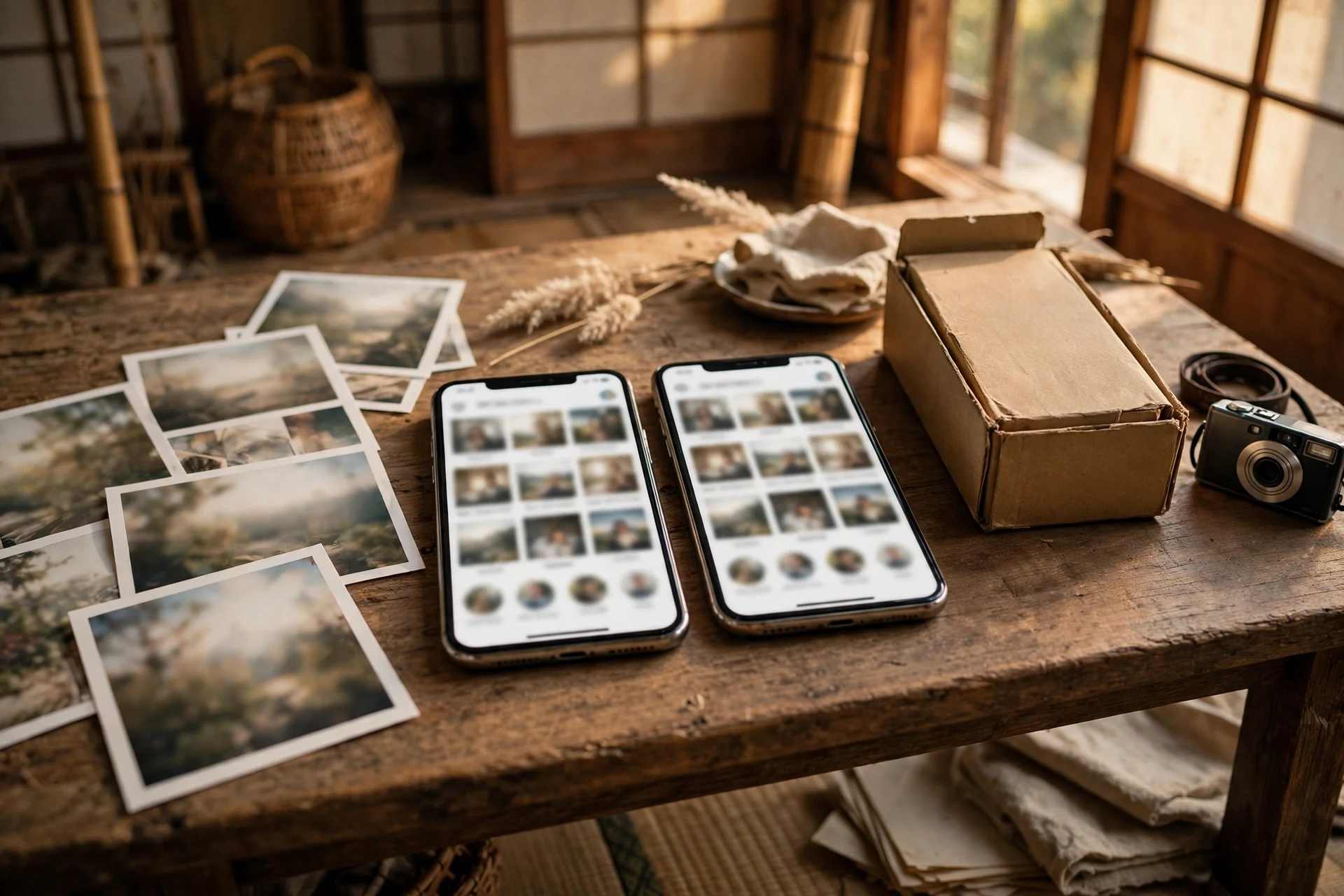
The result first: when your contacts and photos are kept on the side of your address — your Google account — and not only inside the device, the day you change phones stops being a day to panic. You open the box, sign in with your key (a password or your fingerprint), and the same contacts and the same photos are there. I use two smartphones, and because the address is the same, both show exactly the same address book and the same album. That is what made changing devices easy for me.
This is the final episode of “Google Apps Basics,” and it is about the address book and photos.
It sounds like a plain topic. But on the day you change your smartphone, these are the two things people panic about most. Get them in order, and changing devices becomes only “open the box and put in the key.”
Your address book and album do not belong to the device
In the past, contacts (your address book) and photos (your album) lived only inside the device.
If the device broke, they disappeared with it. Every time you changed devices, moving them took half a day. There was such a time.
Now you can keep them on the side of your address (your Google address). The device is “a tool for looking,” and the important things themselves are on the other side. Whether you keep them in that shape or not completely changes how hard the day of changing devices will be.
The point of this episode — do not keep important things only inside the device
The point of this episode is just one.
Do not keep your address book and photos only inside the device. Keep them on the side of your address.
I myself carry two smartphones. Because the address is the same, whichever device I open, I see the same contacts and the same photos. It was thanks to this setup that changing devices was easy.
Today, even if you buy a device in a shop, it is normal to move the data yourself. If you buy online, there is not even a shop assistant. That is exactly why this matters. If your data is on the side of your address, you do not need the move itself.
You only need to check two settings
There is nothing difficult. You only check two things.
- Are contacts saved on the Google side?: When you add a new contact, look at whether the place it is saved to is your address (account). If it is set to save only on the device, it will not remain when you change
- Is photo backup turned on?: If the backup setting in Google Photos is on, the photos you take also remain on the side of your address
If both of these are on, even if you lose your device, your address book and photos will come back. Combined with the “find a lost device” setting I wrote about in Episode 1, your preparations for the day you lose it are complete as a set.
A caution when you delete — take this one slowly
There is just one thing to be careful about.
With photos kept in this backed-up shape, if you delete them on the device, the other side may be deleted together with them.
It is easy to make the mistake of thinking “I only want to free up space on the device,” deleting, and finding that the backed-up copy is gone too. When you want to free up space, use the dedicated “free up space” operation. And before you delete, stop once and check: “Is this really something I can delete?”
The more important the photo, the more slowly you should do the deleting.
What you do yourself, and what Moka does
To be honest, the settings in this episode are the work of the person who touches the device. It is not a shape where Moka changes the settings on her own.
What you do yourself
- Check where contacts are saved and check the photo backup setting
- Decide who to share photos with
- Decide what to delete
What Moka does
- Guide you through the order of the settings, replacing the words on the screen with plainer words
- Turn photos you hand over into the shape of an article or a record (the photos on my blog are used in this shape)
- Put the steps for the day you change devices together in a list
The setting is one step by the person themselves; the steps and the shaping are Moka’s work. The division is the same here, too.
Safety, and cautions for sharing
- Choose who you share photos with: Album sharing is convenient, but check the range you are handing over before you share
- Be careful with location information: Photos may record where they were taken. When you hand them to someone, keep that in a corner of your mind as well
- Watch for duplicates in your address book: If the same person appears two or three times, there is an operation to combine (merge) them. Before you delete in a panic, check first
Good things that follow
- The day you change devices stops being frightening: You just open the box and enter with your key (a password or fingerprint)
- You do not lose your address book: Contacts that grew over many years do not disappear together with the device
- Photos remain as a family record: In my house, the record of repairing our old folk house and the photos of our cats are kept in this shape
- You can choose your phone company again: If your data is on the side of your address, changing your line is easy, too. It was because I had this preparation that I was able to change to Rakuten Mobile
A real example — the repair record and two smartphones
In my house, we are repairing our old folk house ourselves, little by little.
The photos from before the repair and after the repair are the record of our life itself. I made a rule for the names of the photos. Date, subject, number — and for repair photos, “before” / “after” at the end. That way, when you look back later, the difference is clear at a glance.
Because these photos are kept on the side of the address, the same record can be seen from either of my two smartphones. Even if one device is not at hand, there is no trouble.
The photos of our cats are on the same shelf. A family record is one of the things I do not want to be broken off by a device change. The word “preparation” can sound stiff, but in short it is just this: “Do not keep important things only inside something that can break.” That is all.
The first step, and where people stumble
If you check, please go in this order.
- When you add one new contact, look at the display of where it will be saved (is it your address = account?)
- Open the backup setting in Google Photos and see whether it is on
- Check whether you can also see one important photo from your computer
There are three places where people stumble.
- Old contacts remain only on the device: Contacts you made before moving to the address side may still be saved on the device. Before you change devices, prepare the steps to move them
- Videos eat up space: The free 15GB is shared among photos, letters, and documents. For a household where long videos keep growing, paid space is also an option
- Do not share one address with the whole family: The basic rule is one address for one person. If a family uses the same address, address books and photos get mixed together. When you divide (share), do it only after choosing the person and the range
In closing — preparations are for a calm day
Preparations for your address book and photos are not something to do on the day you change devices, but on a calm day.
If you panic only after the day of the change arrives, it may be too late. Today, check the two settings. That alone will help your future self. “Google Apps Basics” has now come full circle with this episode. Starting from having an address, then writing, receiving, schedules, a place to keep things, and the address book and photos. The tools are already all together inside your smartphone.
The “Google Apps Basics” series
- Episode 1: Starting from Having a Google Address — The Basics of Account Registration
- Episode 2: When an Idea Comes, Write It Down First — The Basics of Google Keep
- Episode 3: Letters Do Not End with Reading — The Basics of Gmail
- Episode 4: Schedules Belong on a Table, Not in Your Head — The Basics of Google Calendar
- Episode 5: Decide Where Things Belong, and You Stop Searching — The Basics of Google Drive
- Episode 6: So You Don’t Panic on the Day You Change Devices — The Basics of Contacts and Photos
- November 18, 2026 ― English draft created (results-first rewrite of the Japanese article, ledger No. 77). Not published; publication is a separate step.(6,582 characters)